Laptop Test Online (2026): How to Test Laptop Hardware Free on Windows, MacBook and Chromebook
Want to know if your laptop is healthy, or if a used one is worth the money? This guide shows how to test laptop hardware for free on a Windows laptop, MacBook or Chromebook: a full online laptop test in your browser, the built-in Dell, HP, Lenovo and Apple diagnostics, battery and SSD health, overheating, and what to check before you buy a used laptop in person or online.
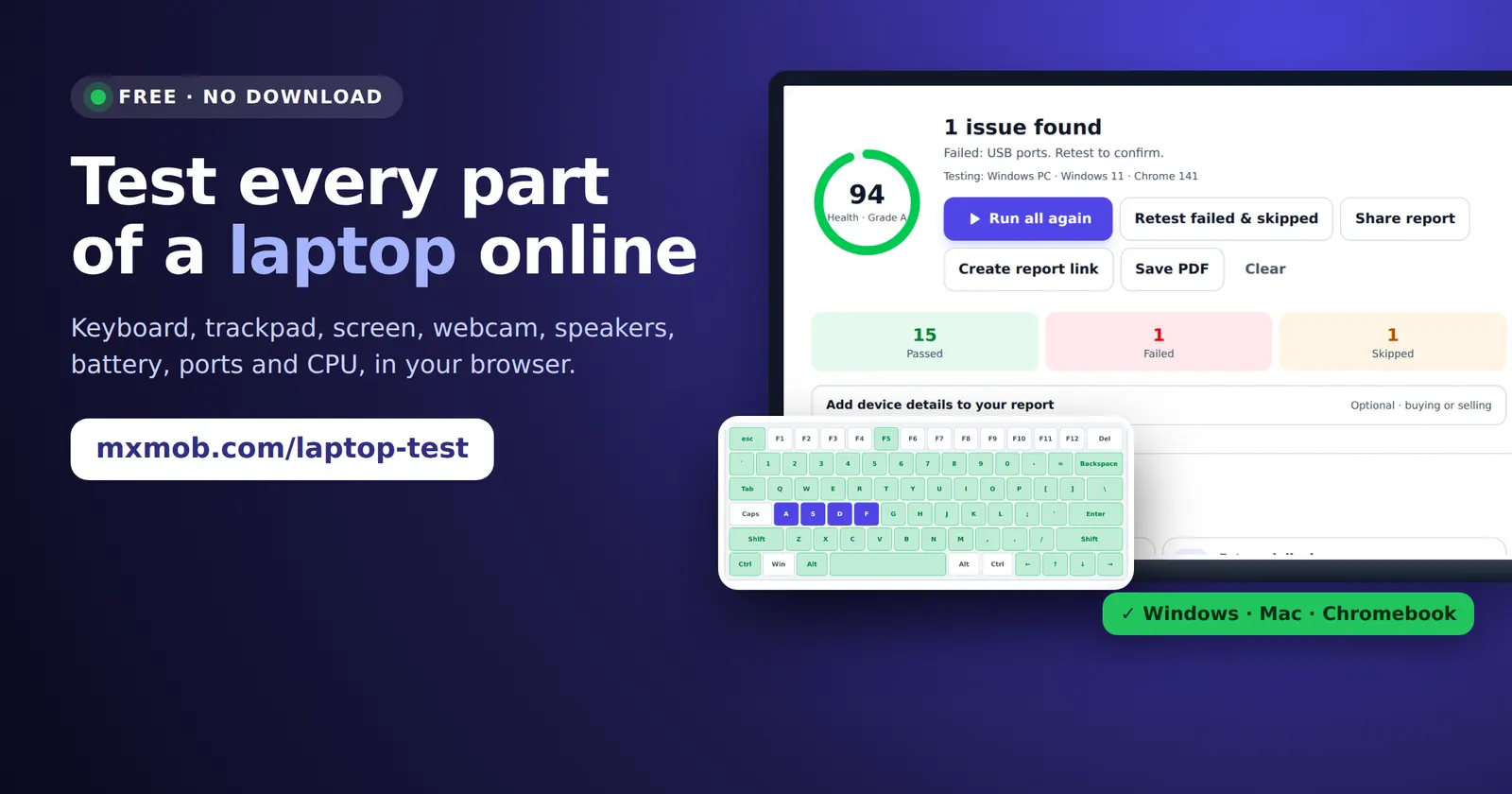
The short answer
- Open mxmob.com/laptop-test on the laptop in Chrome, Edge or Safari and click Test all. It checks the keyboard, trackpad, screen, speakers, microphone, webcam, battery, Wi-Fi, Bluetooth, USB ports and processor in about 5 minutes, with no download.
- Check battery health:
powercfg /batteryreporton Windows, System Settings › Battery on a Mac, or the Diagnostics app on a Chromebook. Below 80% means a new battery soon. - Check storage and memory, which no website can read: drive health in Windows Settings or Disk Utility, and Windows Memory Diagnostic if the laptop crashes.
- For a deeper hardware scan, run the maker’s own tool: Dell SupportAssist (F12), HP PC Hardware Diagnostics (Esc, then F2), Lenovo Diagnostics or Apple Diagnostics (Command-D or D at startup).
- Buying used? Add the used laptop checklist for Find My Mac, BitLocker and BIOS locks. Buying online or shipped? Watch the seller run the test live with Live Remote Inspection.
What a laptop hardware test should check
Search for “laptop test” or “how to check laptop hardware” and you’ll find a dozen single-purpose sites: one for the keyboard, one for the webcam, one for dead pixels. A laptop is one machine, though, and the faults that matter tend to come together. A worn hinge cracks the screen cable, which kills the webcam. A swollen battery pushes up the trackpad. A clogged fan makes the processor slow down. So a proper laptop health check covers every part in one go:
| Part | What goes wrong | How to test it | Free test |
|---|---|---|---|
| Keyboard | Dead keys, keys that type twice, stuck keys | Press every key and watch it register | Keyboard test |
| Trackpad / mouse | Missed clicks, phantom double-clicks, jumpy pointer | Click, right-click, scroll and drag in a test box | Trackpad test |
| Screen | Dead or stuck pixels, lines, backlight bleed, wrong Hz | Full-screen solid colors and black in a dark room | Dead pixel test |
| Speakers & mic | One side silent, crackling, muffled mic | Left/right tones heard by the microphone | Speaker · Mic |
| Webcam | Black picture, not detected, blurry, low frame rate | Live picture with real resolution and fps | Webcam test |
| Battery & charger | Low capacity, won’t charge, swelling | Charging status plus the system battery report | Battery test |
| Processor & cooling | Overheating, thermal throttling, slow CPU | Full-load test that watches for slowdown | CPU test |
| Wi-Fi & Bluetooth | Slow or dropping Wi-Fi, Bluetooth missing | Real speed test and a device scan | Wi-Fi · Bluetooth |
| Ports | Loose USB-C, dead USB-A, no HDMI output | Plug in a drive, mouse, charger and monitor | Laptop test |
| Storage (SSD/HDD) | Worn SSD, bad sectors, failing drive | Drive health in Windows, Disk Utility or the maker’s tool | See below |
| Memory (RAM) | Random crashes and blue screens | Windows Memory Diagnostic or Apple Diagnostics | See below |
The first eight rows can be tested from a web page, which means no download, no admin rights and nothing left behind on a laptop you don’t own yet. The last two need the operating system or the manufacturer’s own tool, and this guide covers both.
How to run a free laptop test online
MxMob’s laptop diagnostic runs 17 tests in the browser on Windows 10 and 11, macOS and ChromeOS (18 on a touch-screen laptop, which also gets a touch test). It works in Chrome, Edge, Safari and Firefox, though Chrome and Edge give the most detail.
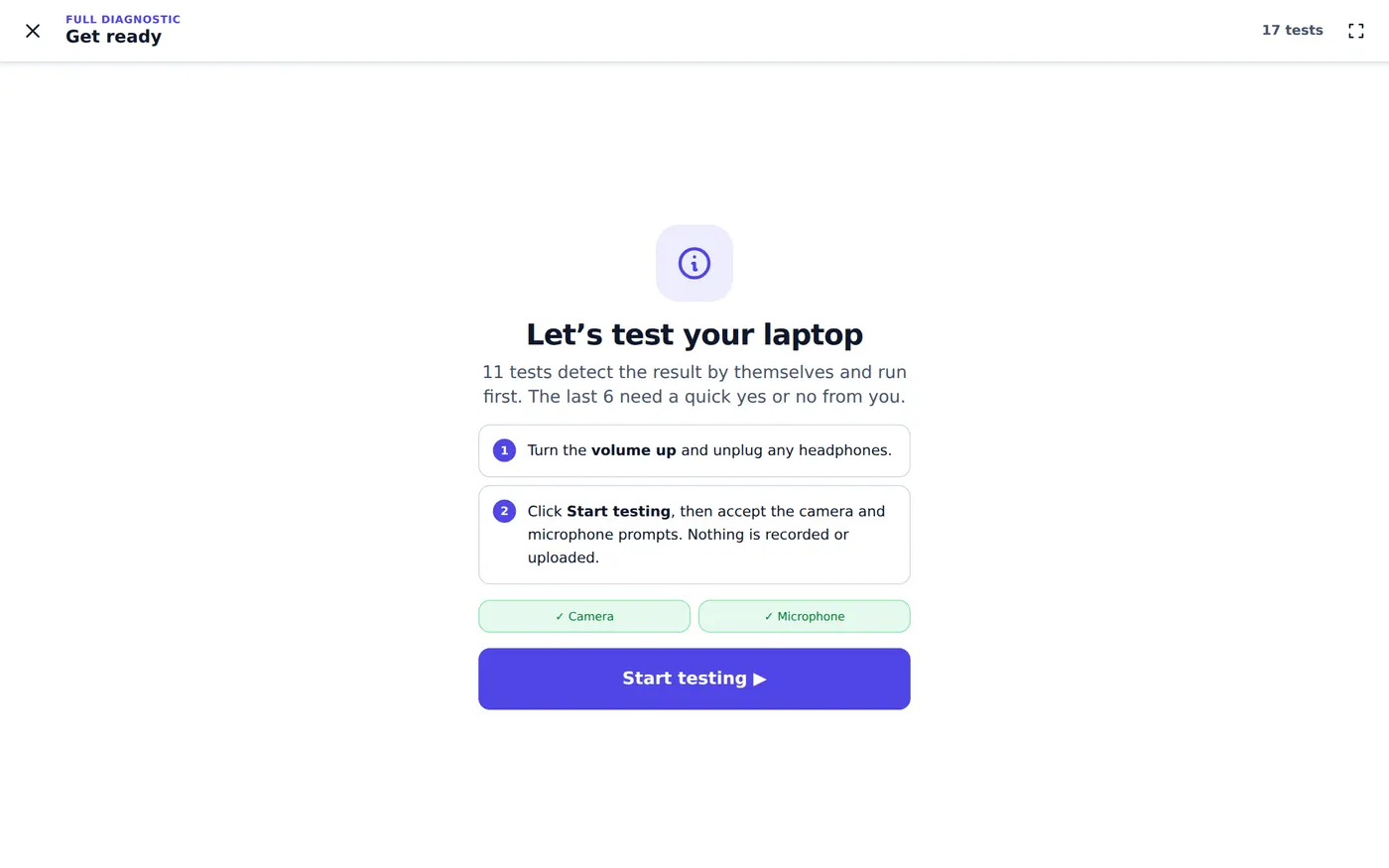
- Open mxmob.com/laptop-test on the laptop itself, not on your phone. Turn the volume up and unplug headphones.
- Click Test all, then Start testing. Allow the camera and microphone when the browser asks. They’re used only for the speaker, mic and webcam tests; nothing is recorded or uploaded.
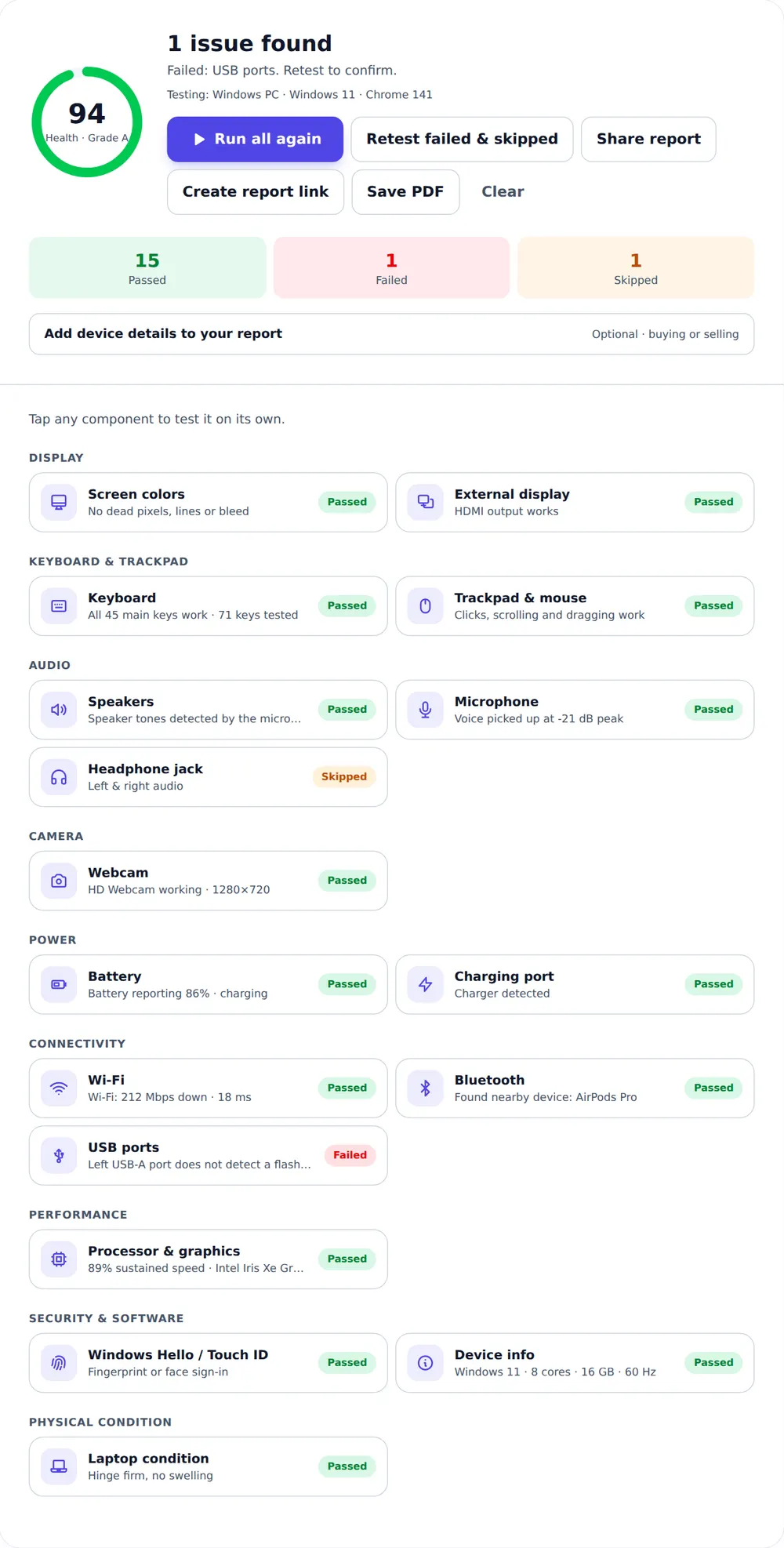
- Tests that can check themselves run first: keyboard, trackpad, speakers (heard by the microphone), microphone, webcam, processor, Wi-Fi and device info, plus battery, charging, Bluetooth and Windows Hello or Touch ID where the browser supports them. Most pass on their own as soon as the hardware responds.
- The rest need a quick yes or no from you: screen colors, external display, headphone jack, USB ports and physical condition. Have a USB drive or mouse and a monitor cable nearby if you want to check the ports.
- Read the score. Click Retest failed & skipped to confirm a failure, then Save PDF, Share report or Create report link if you’re selling the laptop or reporting a fault.
Every result is saved in the browser, so you can close the tab and come back. Here is what a finished report looks like, in this case a Windows laptop with one dead USB-A port:
Prefer to test one part? Every test also has its own page: keyboard, mouse and trackpad, webcam, microphone, speakers, headphones, screen, backlight bleed, refresh rate, battery, Wi-Fi, Bluetooth and processor. The MxMob docs list them all.
Laptop keyboard test: dead, stuck and double-typing keys
Keyboards are the part people most often search to test, because a single bad key is easy to miss in a quick look. The keyboard test shows a full Windows or Mac layout. Type the sentence, then press Tab, Enter, Backspace, Shift and the arrow keys. Each key turns green when it registers, blue while it’s held down, and red if one press typed twice (key chatter, a sign of a worn or dirty switch). A key that stays white when you press it isn’t working.
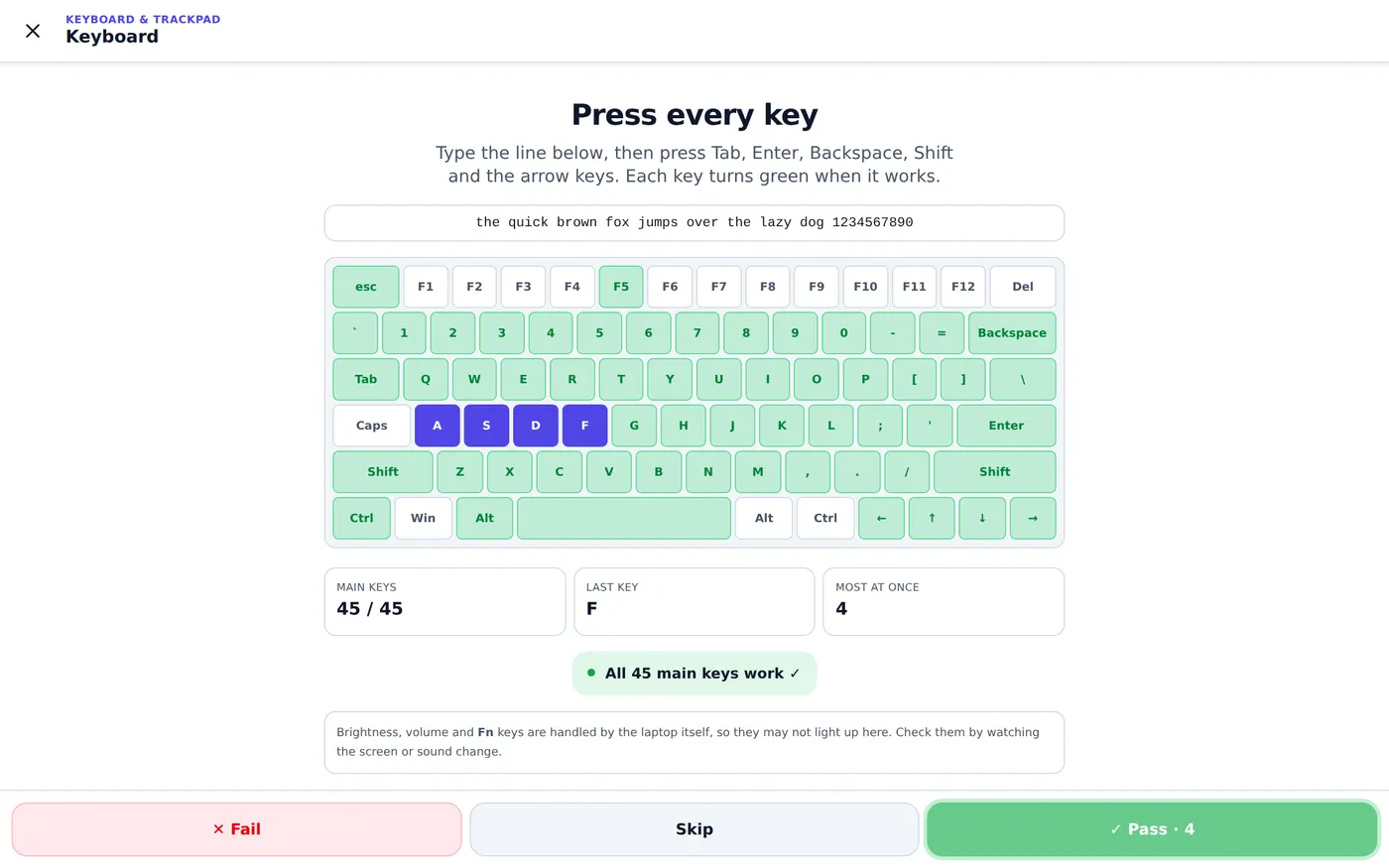
- Key rollover and ghosting: hold several keys at once. Most laptop keyboards register at least 3 or 4 together; gamers who need more should check the Most at once figure.
- Fn, brightness and volume keys are handled by the laptop’s firmware, so they may not light up in any browser test. Check them by watching the screen brightness or volume change.
- Number pad typing arrows? Num Lock is off. Top row changing brightness instead of F1–F12? Fn Lock is on.
If some keys fail, our guide to laptop keyboard keys not working walks through Filter Keys, layouts, BIOS testing, cleaning and spills, in that order.
Trackpad and mouse test
The trackpad and mouse test checks left click, right click, double-click, scrolling up and down, and click-and-drag inside a box. Optional extras cover middle click, sideways scrolling, pinch zoom and the back and forward buttons on a mouse. It also measures the time between your double-clicks and the pointer rate.
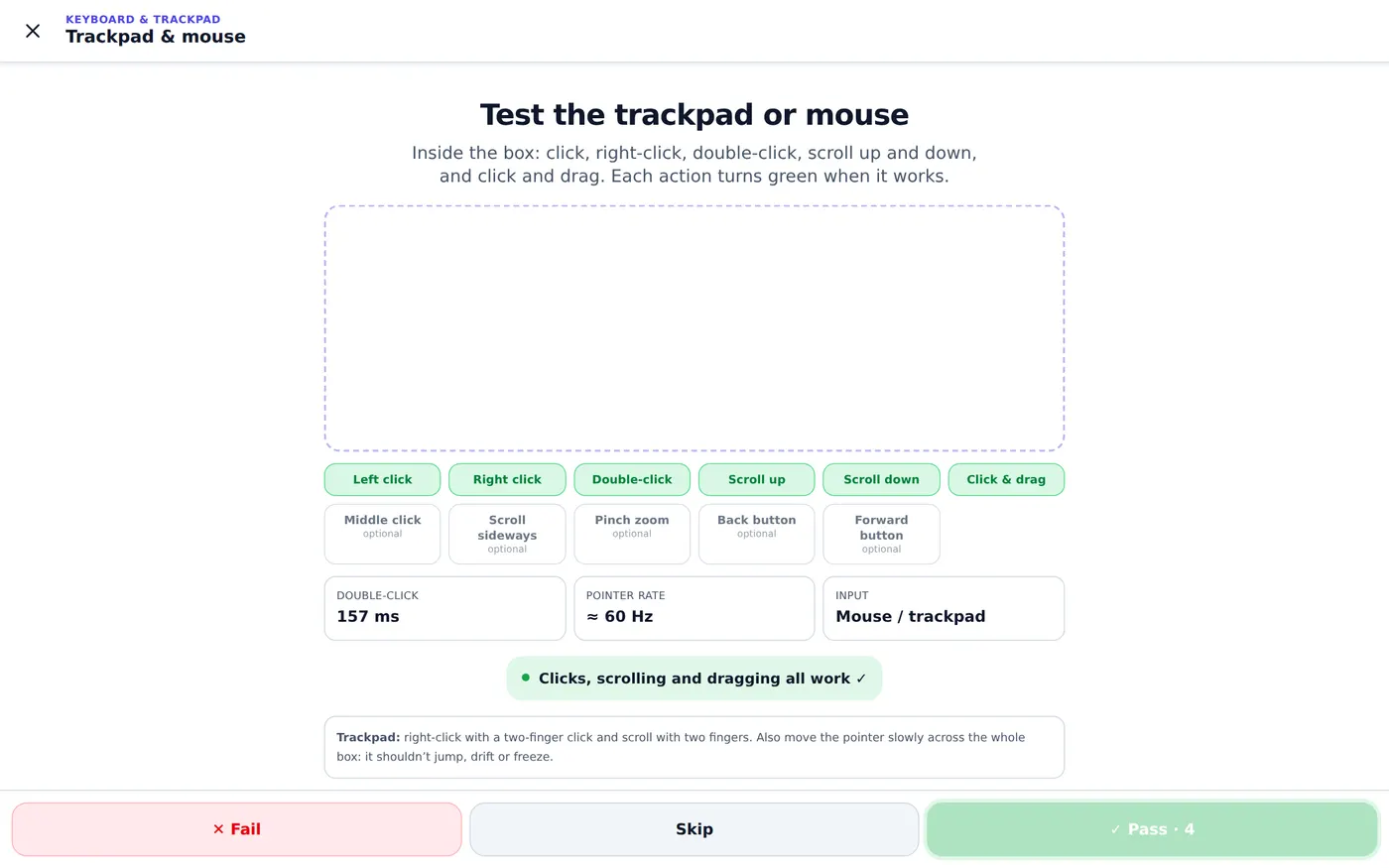
A mouse that double-clicks by itself is a classic worn-switch fault, and the test calls it out when two clicks arrive impossibly close together. On a laptop trackpad, watch for a pointer that jumps or drifts (often moisture or a noisy charger) and for a trackpad that sits higher than the case or clicks unevenly. That last one can mean a swollen battery underneath, which is a safety issue: stop using the laptop and get the battery replaced. Gamers can also try the click speed test or the gamepad tester.
Laptop screen test: dead pixels, backlight bleed and refresh rate
A laptop screen test fills the display with solid colors so faults have nowhere to hide:
- Dead and stuck pixels: the dead pixel test shows full-screen red, green, blue, white and black. A dead pixel stays black on every color; a stuck one stays red, green or blue. Stuck pixels can sometimes be revived with the stuck pixel fixer; dead pixels can’t. Our dead pixel vs stuck pixel guide explains the difference.
- Backlight bleed and IPS glow: run the backlight bleed test in a dark room at full brightness. Light fixed at the edges is bleed; a glow that shifts as you move your head is IPS glow, which is normal to a degree.
- Lines, flicker and pressure marks: a vertical line that changes when you flex the lid points to the display cable in the hinge, not the panel. Marks shaped like keys mean the lid was closed on something.
- Refresh rate: paid for a 120Hz or 144Hz gaming laptop? The refresh rate test shows the real Hz. If it reads 60Hz, check Settings › System › Display › Advanced display on Windows, or battery saver.
- Resolution: the screen resolution checker confirms you got the 1080p, QHD or 4K panel the listing promised, after allowing for display scaling.
Speakers, microphone, headphone jack and webcam
In the full laptop test, the speaker check plays tones on the left and right channels and listens for them with the microphone, so a silent speaker can’t pass by accident. You can also run each part separately:
- Speaker test: left, right and a frequency sweep. Crackling at low frequencies usually means a torn speaker. Our guide to muffled or crackling speakers applies to laptops too.
- Microphone test: record and play back, with a live level meter. A very low level with the right input selected often means a blocked mic hole or a failing cable in the hinge.
- Headphone test: confirms left and right through the 3.5 mm jack or USB-C headphones.
- Webcam test: shows the live picture plus the real resolution and frame rate (for example 1280×720 at 30 fps). A black picture is usually a privacy shutter, a camera-off key or a permission setting; if no camera appears at all in Device Manager after a restart, the webcam or its cable has failed.
How to check laptop battery health
Batteries are the part that wears out on every laptop, and websites can’t read their health directly. Each operating system keeps the numbers in a different place:
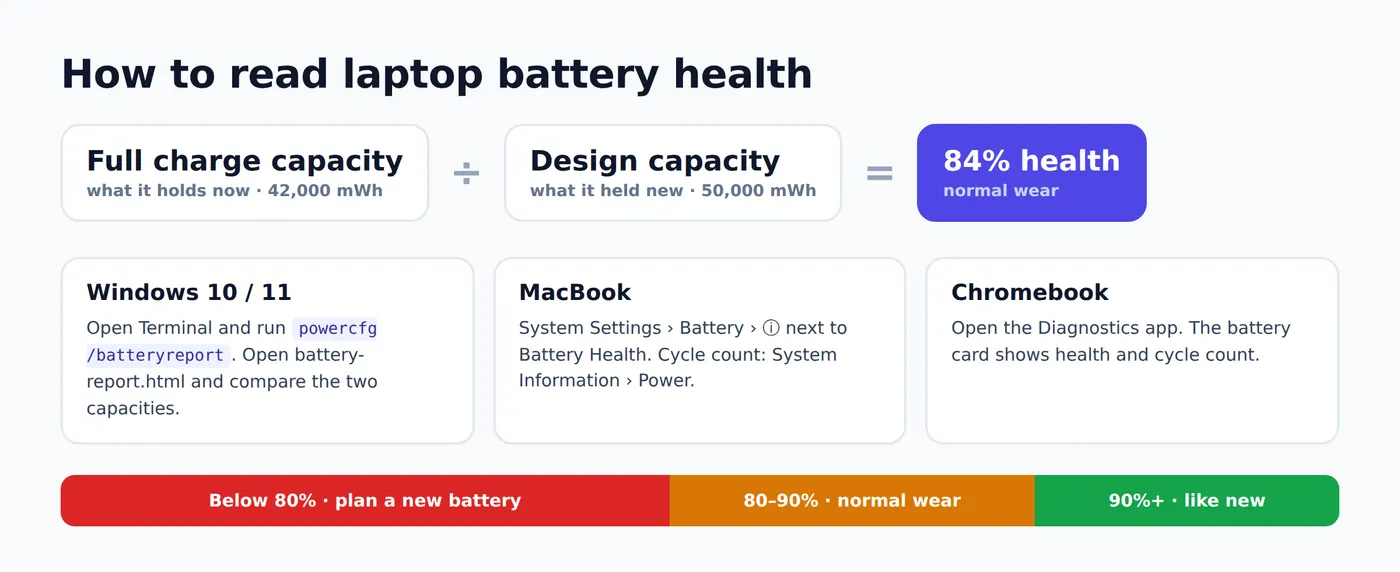
- Windows 10 and 11: open Terminal or Command Prompt, run
powercfg /batteryreport, and open thebattery-report.htmlfile it saves. Divide Full charge capacity by Design capacity. - MacBook: System Settings › Battery, then the ⓘ next to Battery Health. For the cycle count, open System Information › Hardware › Power. Apple rates most modern MacBook batteries for 1,000 cycles.
- Chromebook: open the Diagnostics app from the launcher for health, cycle count and power draw.
Above 90% is close to new, 80–90% is normal wear, and below 80% means noticeably shorter battery life and a replacement worth pricing in. In Chrome and Edge, the battery test also shows live charging status, which is a quick way to check a charger and the charging port. The full walkthrough is in our laptop battery health guide.
Is my laptop overheating? CPU stress test and specs
An overheating laptop rarely shuts down. It just gets slower: the processor cuts its own speed to stay cool, called thermal throttling. The usual causes are a fan clogged with dust, dried-out thermal paste, or a laptop used on a bed or couch that blocks the vents.
The laptop test’s processor check runs every core at full load for about 15 seconds and measures how much speed it keeps. It also reads the graphics chip. A result near 100% sustained speed is healthy. If speed drops below 60% within ten seconds, the test warns that the laptop may be overheating. Plug in the charger first, because many laptops slow down on battery, and close heavy apps before you run it.
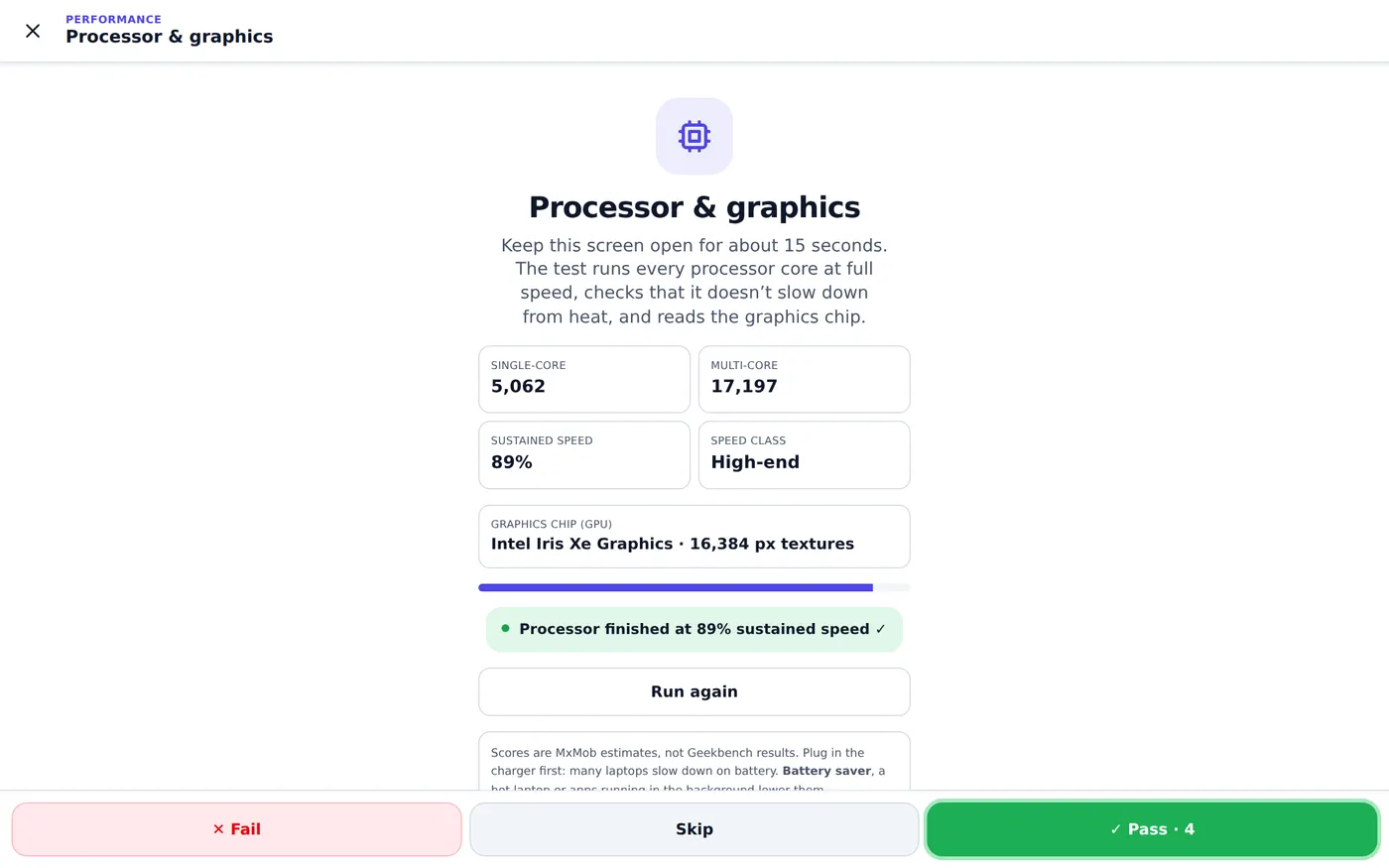
This is a short check, not a 30-minute torture test, but it is enough to catch a laptop that throttles hard, which is what matters when you’re deciding whether to buy it or clean it. While you’re here, confirm the specs match what you paid for:
- Windows: Settings › System › About for the processor and RAM; type
msinfo32in Start for the full system summary, ordxdiagfor the graphics card. For the serial number, runGet-CimInstance Win32_BIOS | Select SerialNumberin PowerShell. - Mac: Apple menu › About This Mac shows the chip, memory, serial number and year.
- Chromebook: the Diagnostics app shows CPU and memory; Settings › About ChromeOS shows the update date, after which the Chromebook stops getting updates.
The device info page shows what the browser can see (operating system, processor cores, approximate memory, screen and graphics chip) in one place.
SSD health and RAM test (what a website can’t check)
Browsers are deliberately kept away from your drives and memory chips, so no website can honestly claim to test them. Use the built-in tools instead:
- SSD health on Windows 11: Settings › System › Storage › Advanced storage settings › Disks & volumes, choose the drive, then Properties. NVMe SSDs show Drive health with an estimated remaining life and temperature. In PowerShell,
Get-PhysicalDiskshows a quick HealthStatus. The free CrystalDiskInfo app shows full SMART data on Windows 10 and 11. - Mac: open Disk Utility and run First Aid on the drive. System Information › Storage (or NVMExpress) shows the S.M.A.R.T. status, which should read Verified.
- File system errors (Windows): run
chkdsk /scanin an administrator Terminal. - RAM test (Windows): press Start, type
mdsched.exeand choose Restart now and check for problems. Windows Memory Diagnostic runs before Windows starts and reports results after you sign in. Random blue screens or crashes under load are the typical sign of bad memory. - RAM on a Mac: Apple Diagnostics (below) checks memory along with the rest of the hardware.
Built-in laptop diagnostics: Dell, HP, Lenovo, ASUS, Acer, Surface and Apple
Most laptop makers include a hardware diagnostic that runs before the operating system loads. These can test the drive and memory more deeply than any website, and they give you an error code for a warranty claim. Here’s how to open each one:
| Brand | Tool | How to open it |
|---|---|---|
| Dell | SupportAssist pre-boot diagnostics (ePSA) | Restart, tap F12 at the Dell logo and choose Diagnostics |
| HP | HP PC Hardware Diagnostics UEFI | Turn on and tap Esc repeatedly, then press F2 |
| Lenovo | Lenovo Diagnostics | On many ThinkPads, F10 at startup; otherwise the Lenovo Diagnostics download from Lenovo Support |
| ASUS | MyASUS System Diagnosis | Open the MyASUS app › Customer Support › System Diagnosis |
| Acer | Acer Care Center | Open Acer Care Center › Checkup |
| Microsoft Surface | Surface Diagnostic Toolkit / Surface app | Open the Surface app, or download the toolkit from Microsoft |
| Apple (M1 and later) | Apple Diagnostics | Shut down, press and hold the power button until startup options appear, then press Command-D |
| Apple (Intel Mac) | Apple Diagnostics | Turn on and immediately hold D |
| Chromebook | Diagnostics app | Search the launcher for Diagnostics (battery, CPU, memory, network) |
Exact keys vary by model and year, so if one doesn’t work, check your model’s support page. These tools are excellent at drives and memory but don’t ask you whether the speakers crackle, which keys type twice or whether the webcam picture is purple. That’s why the best approach is both: the maker’s tool for storage and RAM, and the online laptop test for everything you see, hear and touch.
USB ports, HDMI, Wi-Fi and Bluetooth
- USB-A and USB-C ports: plug a flash drive or mouse into each port in turn. Wiggle the plug gently: a port that cuts out when touched has a broken solder joint. Charge through each USB-C port that supports charging.
- HDMI and USB-C video: connect a monitor or TV. The laptop test’s external display step asks whether the picture appeared.
- Wi-Fi: the Wi-Fi speed test measures real download speed and latency. Run it next to the router and compare with a phone on the same network; a laptop far slower than the phone may have a loose antenna cable from a past repair.
- Bluetooth: the Bluetooth test scans for nearby devices in Chrome and Edge. Or pair earbuds or a mouse.
How to test a used laptop before buying
A used MacBook, ThinkPad or gaming laptop can cost hundreds less than new, but a lock or a hidden fault can make it worthless. Bring a phone hotspot, a USB drive and earbuds, and give yourself 15 minutes:
- Check the locks first. On a Mac, Find My Mac must be off and the seller signed out of their Apple ID. After a reset there must be no Activation Lock and no Remote Management screen, which means it belongs to a school or company. On Windows, the seller should remove their Microsoft account, and you shouldn’t accept a laptop with a BIOS password or a BitLocker recovery screen.
- Run the full laptop test, unplugged from any external keyboard or mouse. Sellers sometimes use a USB keyboard to hide a faulty built-in one.
- Check battery health and the cycle count as shown above, and charge it with the charger that comes with it.
- Inspect it physically. The laptop test’s last step walks you through the screen, hinge, case and corners, battery swelling, keyboard and trackpad wear, ports, and fan noise.
- Confirm the specs match the listing: processor, RAM, storage and screen.
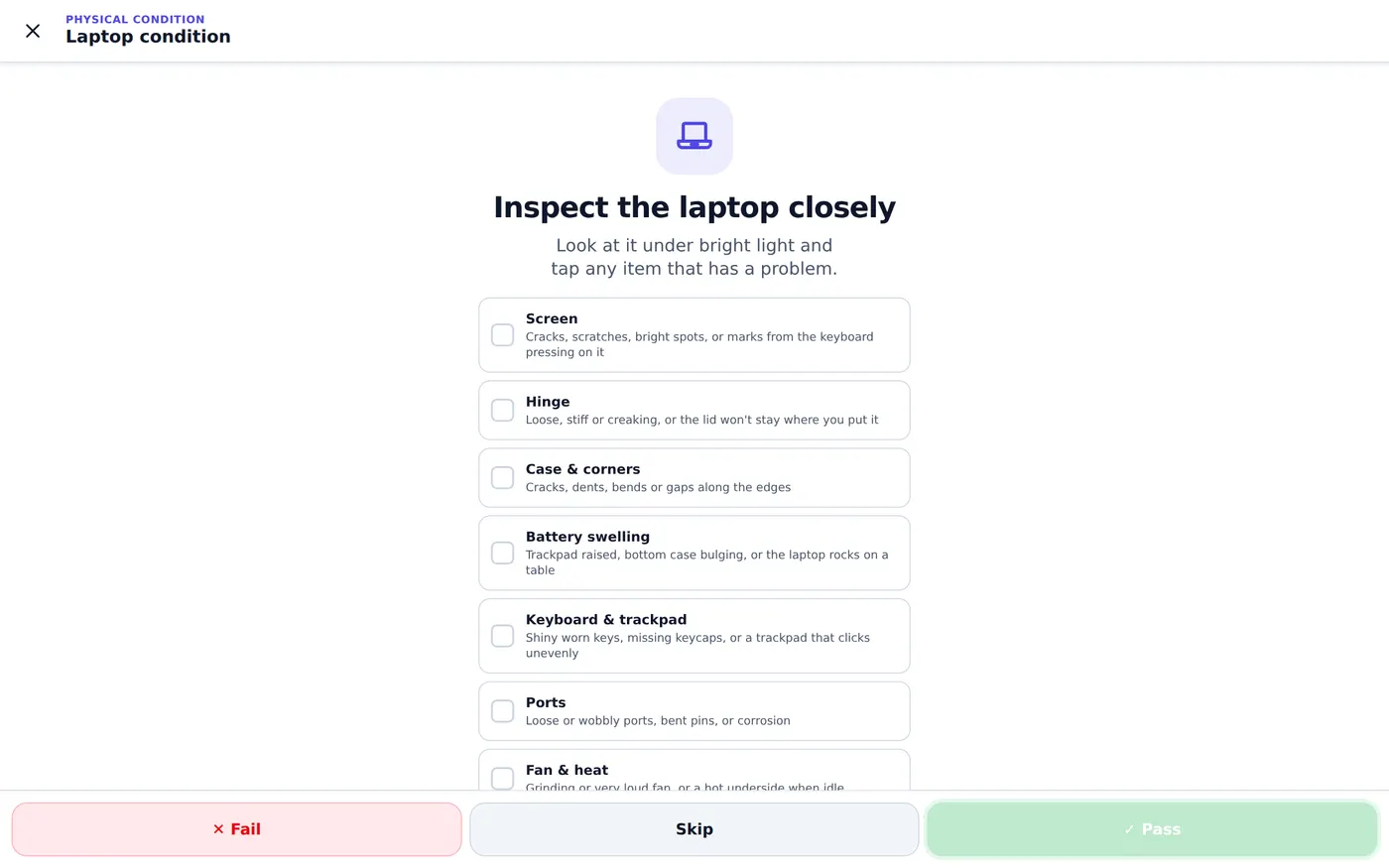
The interactive used laptop checklist has all 26 checks in order, from asking for the serial number before you meet to resetting the laptop together, and it saves your progress as you go.
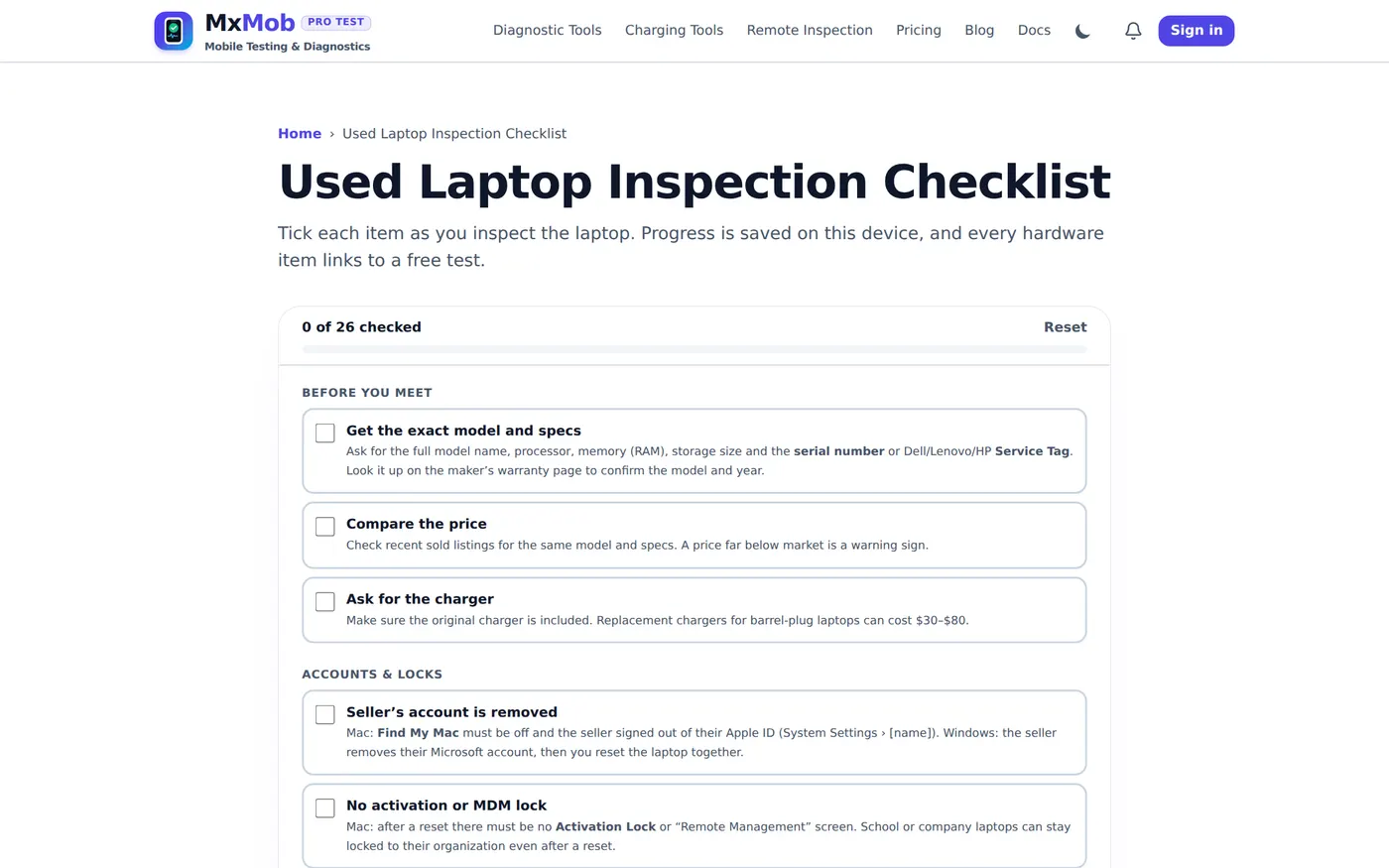
Walk away if the seller won’t sign out or reset the laptop in front of you, the trackpad or bottom case is bulging, the specs don’t match, or they push for payment by Zelle, wire transfer, gift card or crypto.
Buying a laptop online? Watch it tested live first
Everything above assumes you can hold the laptop. When it’s on eBay, Facebook Marketplace with shipping, Swappa, OfferUp, Mercari or Craigslist in another city, you’re stuck with photos and the seller’s word. A video call helps a little, but it measures nothing: a dead key or a crackling speaker is easy to keep off camera.
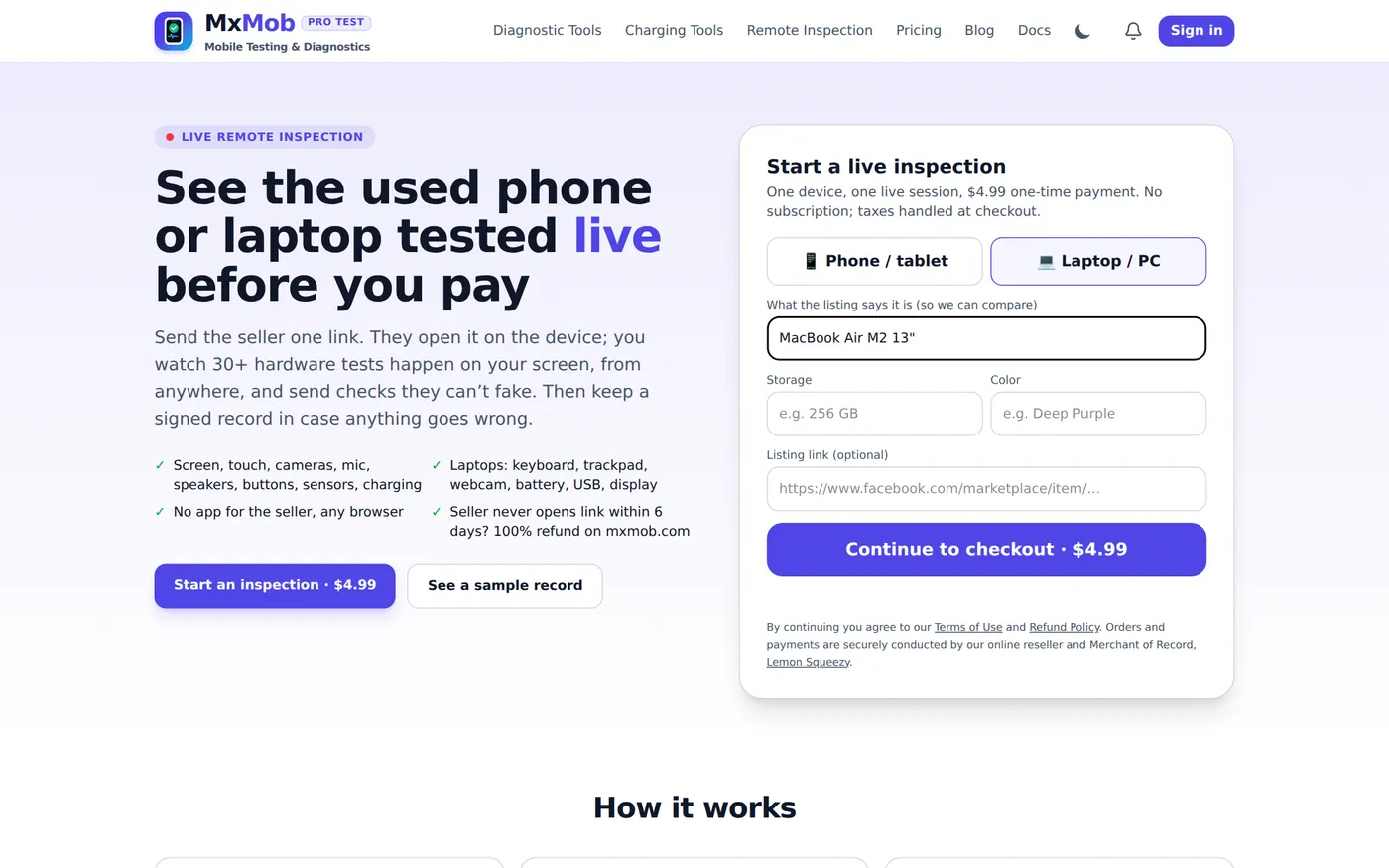
MxMob Live Remote Inspection closes that gap. You pay $4.99 once and get a private link to send the seller. They open it on the laptop, in any browser and with nothing to install, and run the same keyboard, trackpad, webcam, speaker, microphone, display, battery, USB and processor tests while every result appears live on your screen, wherever you are.
- Checks they can’t prepare for. At any moment you can send a mirror code (a code on their screen, photographed in a mirror), a speaker code they must type after hearing it, tap squares you pick, or a request for a photo of the ports, the bottom case or the battery health screen. They’re generated when you send them, so they can’t be pre-recorded.
- A signed record. You keep a tamper-evident record of every result, useful for an eBay or PayPal dispute. See a sample record.
- A handover check. When the laptop arrives, run the handover check to compare it with what you saw during the inspection.
- Refund if they never show. If the seller never opens the link within 6 days, you can apply for a 100% refund. See the refund policy.
As far as we know, no other laptop test lets a buyer watch a seller’s hardware being measured live. The same feature works for phones; our guide to testing a used phone before buying online has step-by-step screenshots of the buyer’s and seller’s screens.
Signs your laptop is failing, and the test that confirms it
- Shuts down with battery left, or only runs plugged in: worn battery. Check the battery report.
- Gets slow when it warms up, fan always loud: overheating. Run the processor test plugged in, then clean the vents.
- Random blue screens or freezes: memory or drive. Run Windows Memory Diagnostic and check drive health.
- Clicking or grinding noises: a failing hard drive or fan. Back up your files now.
- Trackpad raised, case bulging, lid won’t close flat: swollen battery. Stop using it and have it replaced.
- Flickering screen or lines when you move the lid: display cable in the hinge. Confirm with the screen test while slowly moving the lid.
- Keys missing or typing twice: keyboard. Confirm with the keyboard test.
- Webcam or mic stopped working after a hinge repair: a cable not reconnected. Confirm with the webcam and mic tests.
Testing a phone or tablet instead? Use the free 33-point phone diagnostic. Still stuck? The laptop FAQ and the MxMob docs cover browser support, privacy and every tool.
Frequently asked questions
How can I test my laptop hardware for free?
Open mxmob.com/laptop-test on the laptop and click Test all. It checks the keyboard, trackpad, screen, speakers, microphone, webcam, battery, Wi-Fi, Bluetooth, USB ports and processor in your browser, with no download. For the drive and memory, use the maker’s built-in diagnostics, such as Dell F12, HP Esc then F2, or Apple Diagnostics. The table above lists each one.
Is there an online laptop test that works on a MacBook?
Yes. The laptop test works in Safari, Chrome and Edge on macOS. Safari doesn’t share battery or Bluetooth details with websites, so for those it shows where to check in System Settings. Apple Diagnostics (Command-D at startup on Apple silicon) covers memory and storage.
How do I run a laptop diagnostic on Windows 11?
For the parts you see, hear and touch, run the free online laptop diagnostic. Then add Windows’ own tools: powercfg /batteryreport for battery health, mdsched.exe for memory, drive health under Settings › System › Storage, and your maker’s pre-boot diagnostics. The storage and RAM section has the exact steps.
How do I check if my laptop keyboard is working?
Open the keyboard test and press every key. Working keys turn green, held keys turn blue and keys that type twice turn red. If some keys don’t respond, follow our keyboard keys not working guide.
How do I test my laptop’s touchpad?
Use the trackpad and mouse test: click, right-click, double-click, scroll and drag inside the box until every action is green. It also warns about a button that double-clicks by itself. A raised or uneven trackpad can mean a swollen battery, so stop using the laptop if you see one.
How do I check my laptop battery health?
On Windows, run powercfg /batteryreport and divide full charge capacity by design capacity. On a MacBook, go to System Settings › Battery › Battery Health. On a Chromebook, open the Diagnostics app. Below 80% means it’s time to price a new battery. Our laptop battery health guide explains the report, and the battery test checks charging.
How can I tell if my laptop is overheating?
Run the processor test with the charger plugged in. It loads every core for about 15 seconds; if speed drops below 60%, the laptop is throttling from heat, usually because of a clogged fan or old thermal paste. Loud fans at idle and a hot underside are other signs.
Can a website test my SSD or RAM?
No. Browsers can’t access drives or memory chips, so any site claiming to is guessing. Use Windows Memory Diagnostic (mdsched.exe), drive health in Windows 11 Settings, Disk Utility on a Mac, or your maker’s diagnostics. The online laptop test covers everything else.
How do I test a used laptop before buying it?
Make sure the seller has signed out of their Apple ID or Microsoft account and there’s no BIOS password, Activation Lock or company Remote Management. Then run the laptop test, check battery health, and work through the used laptop checklist. If it’s being shipped, use Live Remote Inspection.
Can I inspect a laptop remotely before buying it on eBay or Facebook Marketplace?
Yes. Start a Live Remote Inspection and choose Laptop / PC. The seller opens your link on the laptop and you watch the keyboard, trackpad, webcam, speakers, display, battery and USB tests live, send checks they can’t fake, and keep a signed record. It costs $4.99 once, with a full refund if the seller never opens the link within 6 days.
How do I check what laptop model and specs I have?
On Windows, open Settings › System › About, or type msinfo32 in Start. On a Mac, choose Apple menu › About This Mac. On a Chromebook, open the Diagnostics app. The device info page shows what the browser can see, including the graphics chip.
Does the laptop test record my camera or microphone?
No. Camera and microphone are used only while their test is on screen and are processed on the laptop; nothing is recorded or uploaded. Your report is kept in your browser unless you create a share link or save a PDF. The privacy policy and docs explain what is stored.