Webcam and Mic Test Online (2026): Test Your Camera and Microphone on Laptop, iPhone and Android
Got a Zoom call, a job interview or a Teams meeting in five minutes and not sure your camera or microphone works? This guide shows how to run a free webcam test and mic test online on a Windows laptop, MacBook, Chromebook, iPhone or Android phone, what the results mean, and how to fix a black webcam, a mic that isn’t picking up, or muffled audio on calls.
The short answer
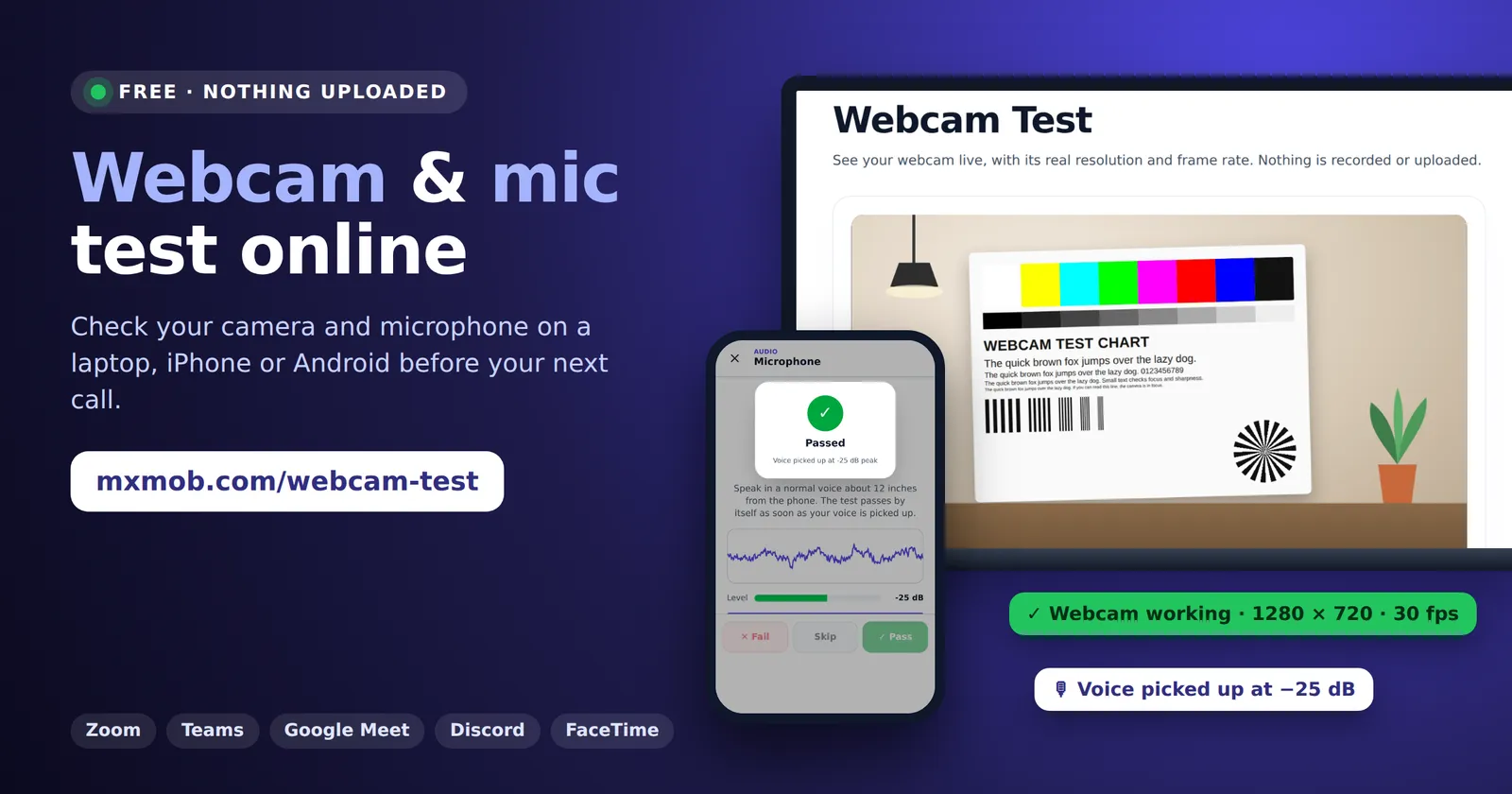
- Webcam test: open mxmob.com/webcam-test, click Start webcam test and allow the camera. A live picture means it works. You also see its real resolution, frame rate and brightness.
- Mic test: open mxmob.com/mic, allow the microphone and speak. If the bars move, the mic works. Click Record 3s Audio and play it back to hear how you sound.
- On a phone: open mxmob.com/check in Safari or Chrome and tap the Microphone, Front camera and Rear camera tests. They pass by themselves when the hardware responds.
- Black screen or silent mic? It’s usually a blocked permission, a privacy shutter, a mute key or another app holding the device. The permission map below shows where to switch it back on for each system.
- Nothing is recorded or uploaded. The picture and sound stay on your device and stop when you close the tab.
Which camera or mic test do you need?
People search for this in a dozen ways: “webcam test”, “test my camera”, “mic test”, “microphone test online”, “is my mic working”, “Zoom mic test”, “camera not working on laptop”. They all come down to one question: does the device pick up a picture and sound clearly, and if not, is it a setting or a broken part? Pick the row that matches what you have:
| You want to test | Use | What it shows |
|---|---|---|
| Laptop or USB webcam | Webcam test | Live picture, real resolution, frame rate, brightness, every camera connected |
| Laptop, headset or USB mic | Mic test | Live sound bars and a short recording to play back |
| iPhone or Android camera | Phone camera test or phone test | Front and rear cameras, lens switching, focus, dust and cracked lens glass |
| iPhone or Android mic | Phone test › Microphone | Detects your voice, shows the level in dB and passes by itself |
| Speakers and headphones | Speaker test · Headphone test | Left and right channels, crackling, the 3.5 mm jack and USB-C audio |
| Call audio on a phone | Earpiece test | The small speaker at the top you hold to your ear |
| The whole device | Laptop test · Phone test | Camera and mic plus screen, touch, keyboard, battery, sensors and more, in one report |
How to test your webcam online
The MxMob webcam test works in Chrome, Edge, Firefox and Safari on Windows 10 and 11, macOS and ChromeOS, with built-in laptop webcams and plug-in USB webcams such as Logitech models.
- Close Zoom, Teams, OBS and any other app that might be using the camera. On Windows, only one app can usually use a webcam at a time.
- Open mxmob.com/webcam-test and click Start webcam test.
- When the browser asks, click Allow. If it doesn’t ask, the camera is blocked for this site: click the camera or settings icon to the left of the address and allow it.
- You should see yourself within a second or two. If the computer has more than one camera, pick each one from the list to test it.
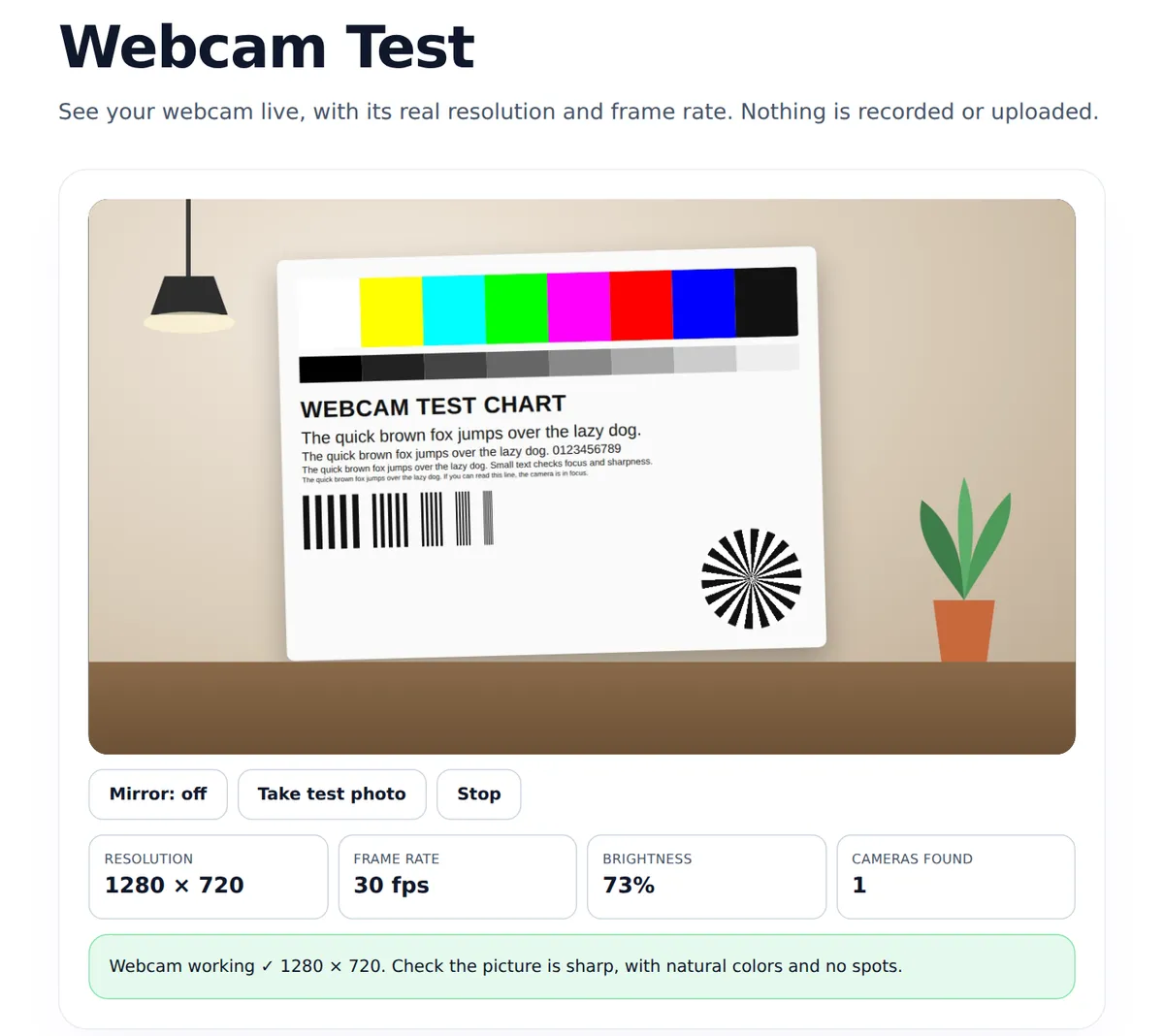
- Click Take test photo to freeze a frame and look for blur or spots, and use Mirror to see the picture the way the other people on a call see it.
How to read the webcam results
- Resolution: the test asks for 1080p, so the number you see is the best your camera gives this browser. Many laptop webcams are 720p (1280 × 720); newer ones are 1080p (1920 × 1080) or higher. A 1080p webcam stuck at 640 × 480 usually means a USB 2.0 hub, an old driver or another app holding the better mode.
- Frame rate: 30 fps is normal for video calls. Under 15 fps looks choppy. In a dark room many webcams drop their frame rate to brighten the picture, so turn on a light and watch the number rise.
- Brightness: near 0% with a black picture means the lens is covered or the camera is switched off. It should rise when you face a window or lamp.
- The picture itself: a pink, purple or green tint, lines, or dark spots in the same place on every frame point to a damaged sensor or a worn cable in the screen hinge.
How to test your microphone online
- Unplug headphones you don’t want to test, or plug in the headset you do.
- Open mxmob.com/mic and click Start Mic Test, then allow the microphone.
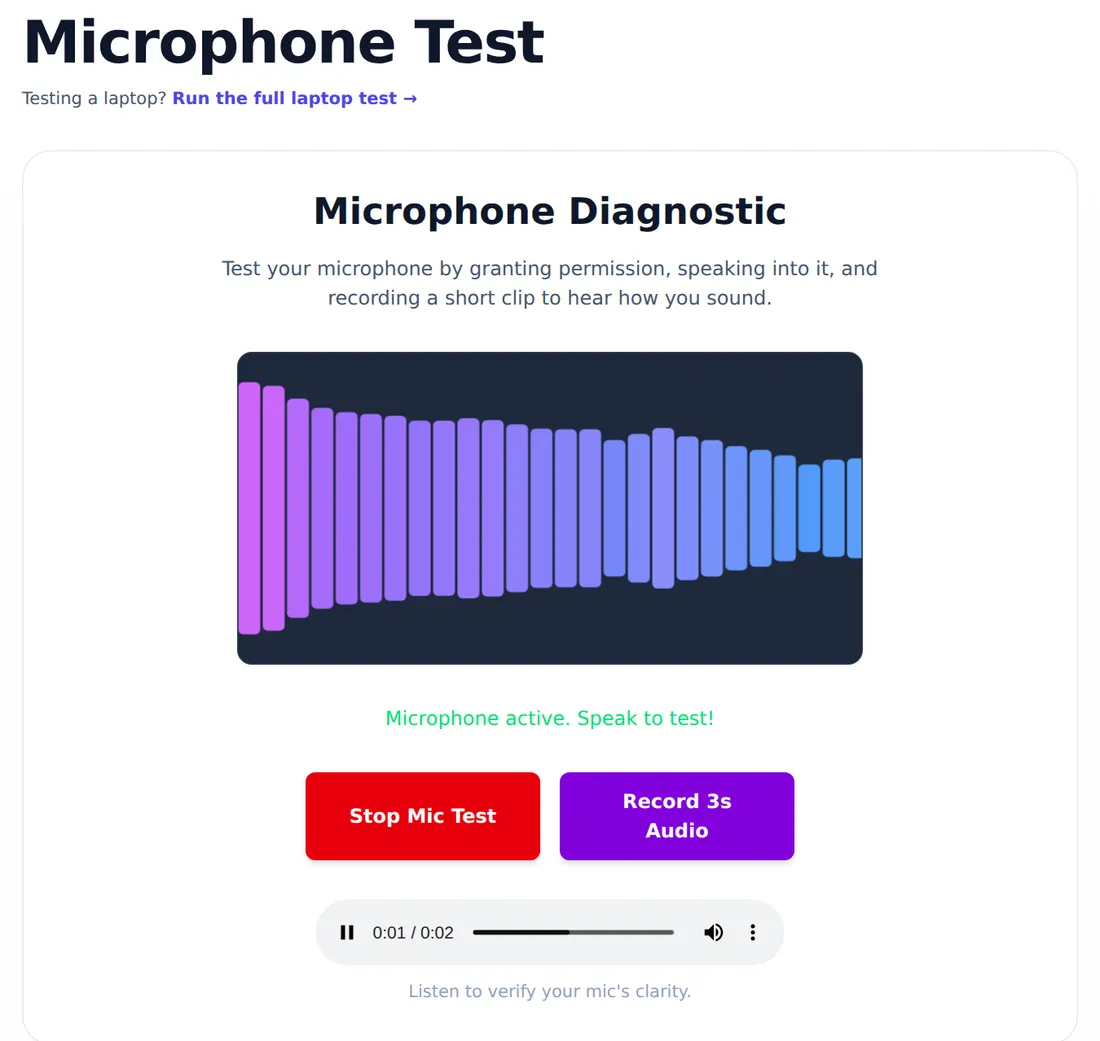
- Talk in a normal voice about a foot from the device. The bars should jump as you speak and drop when you stop.
- Click Record 3s Audio, say a sentence, then play it back. This is the only way to hear the problems a level meter can’t show: muffled sound, hiss, echo or a robotic Bluetooth voice.
What a good mic test looks like
- Bars move when you talk and fall when you stop. The mic works. If they never move, it’s blocked, muted or the wrong mic is selected (see the fixes below).
- Bars move all the time, even in silence: background noise, a fan, or an electrical hum from a cheap charger or a bad USB hub.
- Bars barely move: the input volume is low, the mic hole is blocked, or you’re testing a far-away mic, such as a webcam’s, instead of your headset.
- The playback sounds muffled or distant: on a phone, check for a case or screen protector over the mic hole, or lint inside it. On a laptop, check you aren’t using a Bluetooth headset in “hands-free” mode, which cuts audio quality.
Testing a laptop? The full laptop test checks the mic and webcam together with the speakers, keyboard, screen and battery, and its speaker test uses the microphone to hear the speakers, so it checks both at once.
How to test the camera and microphone on an iPhone or Android phone
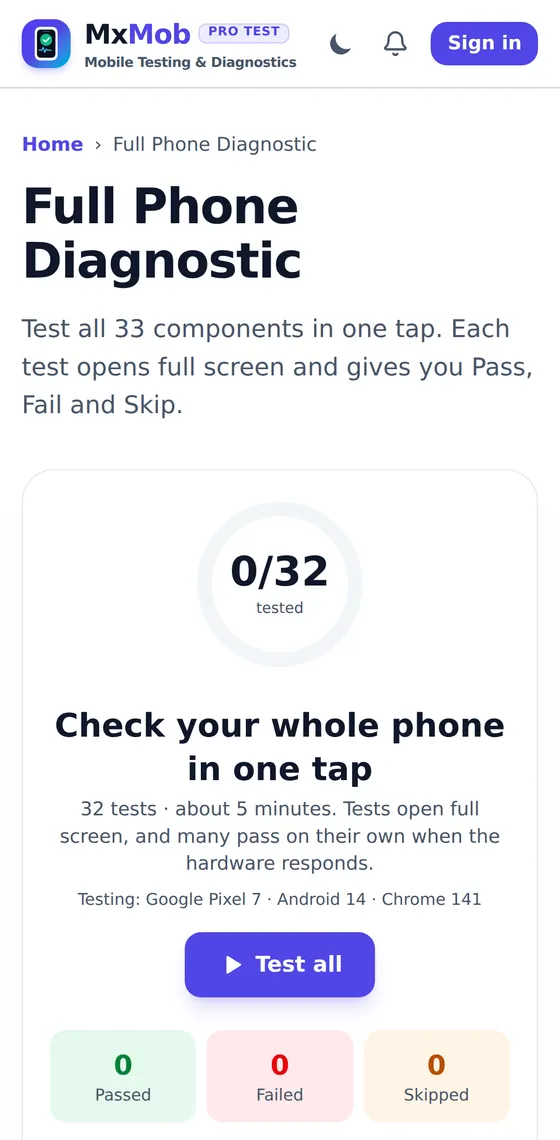
A phone has more to check than a laptop: two or more rear lenses, a front camera, and two or three microphones. Open mxmob.com/check in Safari on an iPhone or Chrome or Samsung Internet on Android, then tap a test to run it on its own, or Test all to run all 33 checks.
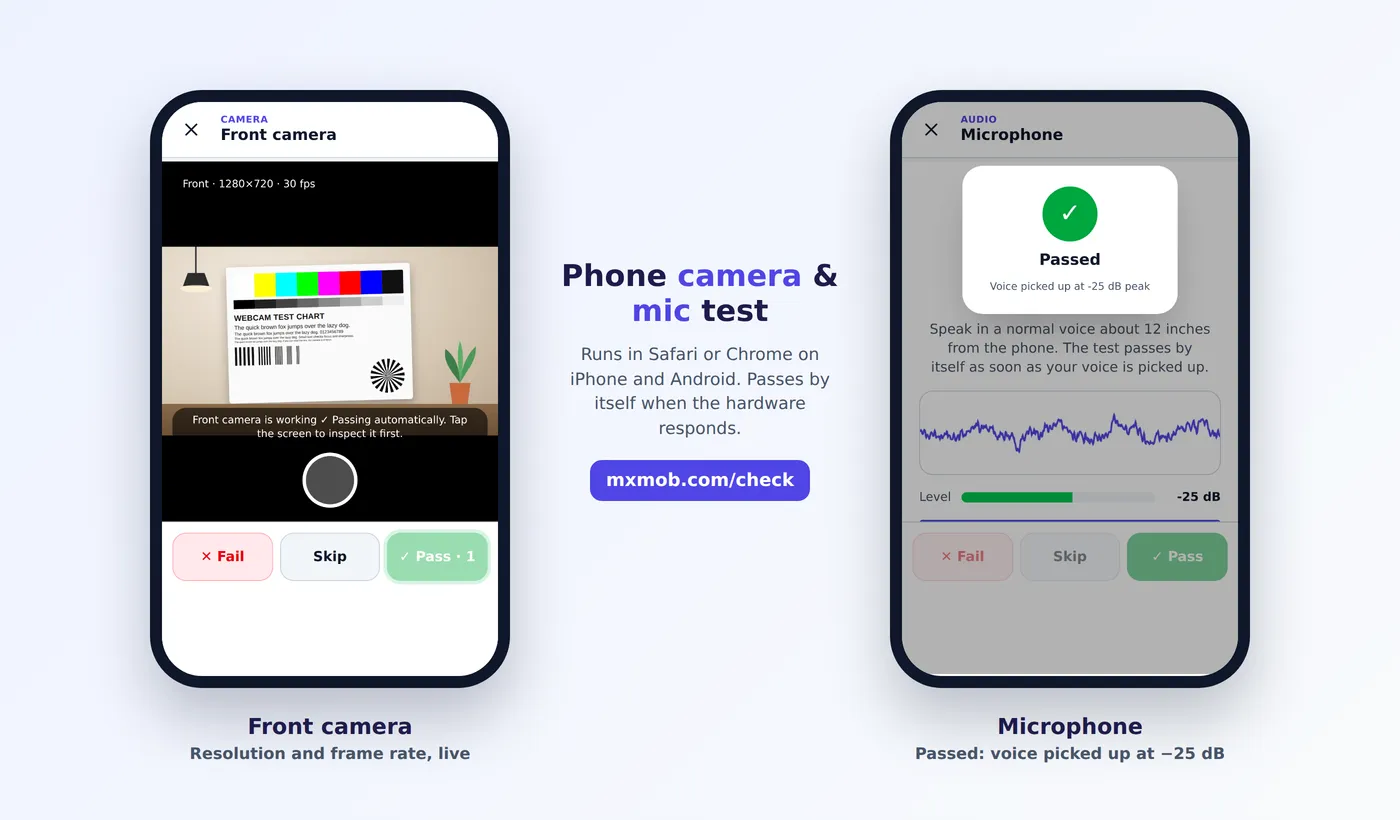
- Microphone: say “Hello, testing.” The test learns the room’s background noise first, then passes as soon as it hears your voice, and shows the peak level.
- Front and rear cameras: each opens full screen with the resolution and frame rate. Tap Switch lens on phones with more than one rear camera, and take a test photo to check focus. The phone camera test explains what blur, hunting focus, dust spots and a wobbling picture mean.
- Face ID or face unlock: if the front camera works but face unlock fails, try the face recognition test.
Test all three iPhone microphones
If people say you sound muffled on calls but your videos sound fine, or the other way round, one of the iPhone’s microphones is the problem. Apple’s own advice is to record with each one and play it back:
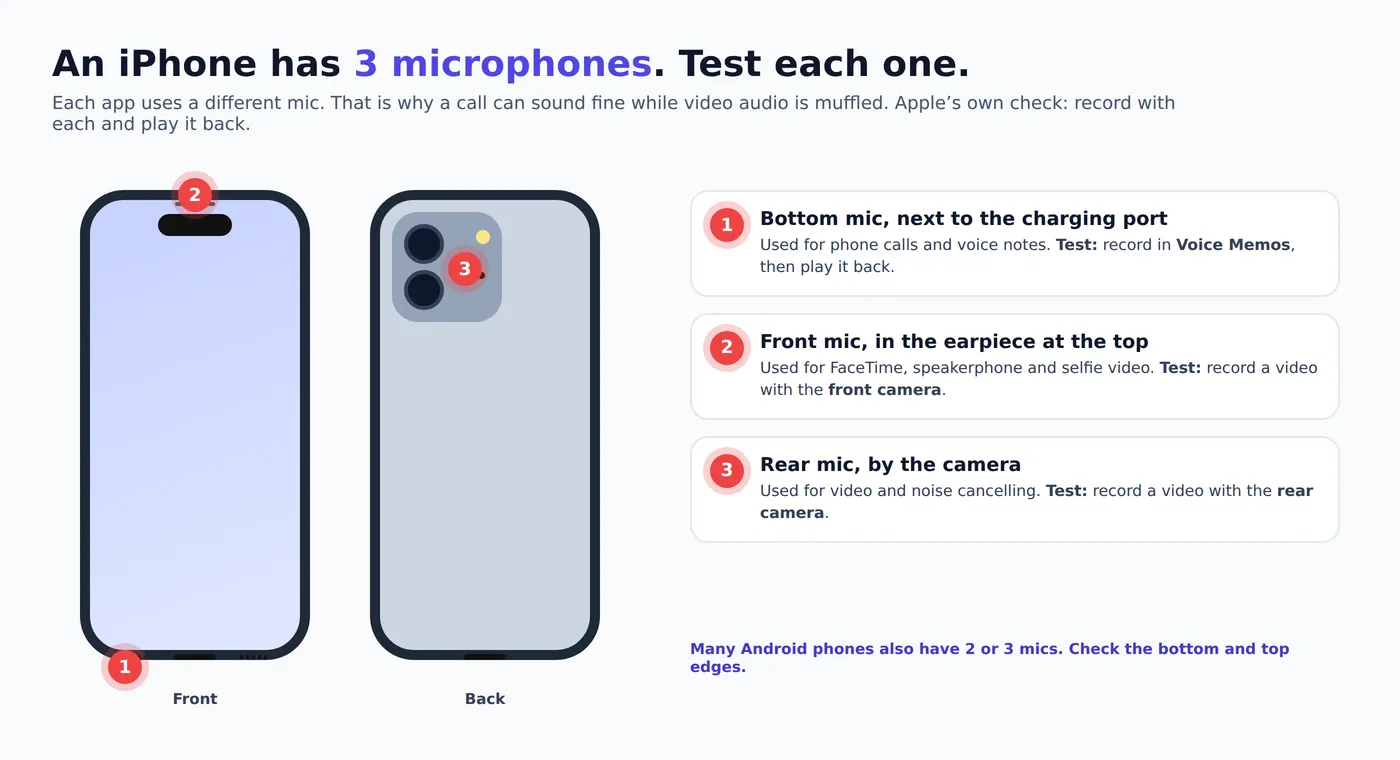
If one recording is quiet or muffled, take off the case and any screen protector, gently brush the hole for that mic with a soft dry toothbrush, and record again. Never push a pin into a mic hole; it can puncture the membrane. A mic that is still bad after cleaning needs a repair. For Samsung phones, Samsung Members › Support › Phone diagnostics also has mic and camera checks; the Samsung diagnostics guide covers it, and there are guides for iPhone and Pixel too.
How to test your camera and mic in Zoom, Teams, Google Meet and Discord
A browser test tells you the hardware works. If it passes but the meeting app still shows a black square or a silent mic, the app is using the wrong device. Every major app has its own check:
| App | Where to test | Tip |
|---|---|---|
| Zoom | Join a test meeting at zoom.us/test, or Settings › Audio › Test Mic and Settings › Video | Untick Automatically adjust microphone volume if your level keeps changing |
| Microsoft Teams | Settings › Devices › Make a test call | The test call records you and plays it back, like the mic test |
| Google Meet | The preview screen before you join, or the gear icon › Audio / Video | Meet runs in the browser, so the browser’s camera and mic permission matters |
| Discord | User Settings › Voice & Video › Mic Test | Check Input Sensitivity; set too high, it cuts off your voice |
| FaceTime (Mac) | The Video menu lists the camera and microphone in use | Your iPhone may be selected through Continuity Camera |
| WhatsApp, Messenger | Record a voice note to yourself and play it back | Check the app has camera and mic permission on the phone |
In every app, choose the device by name: Integrated Webcam or FaceTime HD Camera rather than a virtual camera, and your headset rather than Default. When a Bluetooth headset connects, Windows and macOS often switch the mic to it without asking.
Webcam not working? Fixes for a black screen or “no camera found”
Work down this list in order. Most people are fixed by step 1, 2 or 3.
- Check the hardware switch. Many HP, Lenovo and Dell laptops have a sliding privacy shutter over the lens, or a key with a crossed-out camera icon (often one of the F keys) that disconnects the webcam completely. On a MacBook, the green light next to the camera comes on whenever it’s in use.
- Close other apps using the camera. Zoom, Teams, OBS, Discord and Windows Hello can hold it. A browser tab with another meeting open counts too. The error “camera is in use” or a picture that freezes on the first frame means this.
- Allow camera access for the system, the app and the browser site. The permission map shows exactly where.
- Pick the right camera. If there’s a USB webcam, a docking station, a virtual camera (OBS, Snap Camera) or, on a Mac, an iPhone via Continuity Camera, the browser may be using that one. Select each camera in the webcam test.
- Windows: reinstall the driver. Open Device Manager › Cameras (or Imaging devices), right-click the webcam, choose Uninstall device and restart. Windows reinstalls it. The Camera app error 0xA00F4244 “We can’t find your camera” usually clears this way, or after turning the camera back on in Settings.
- Mac: restart the Mac and update macOS. If the camera is missing from every app and from System Information › Camera, it’s a hardware fault.
- USB webcam: plug it straight into the laptop, not a hub, and try another port and cable. A webcam that disconnects when you move it has a loose connector.
If the camera doesn’t appear in Device Manager or System Information at all after a restart, the built-in webcam or the thin cable that runs through the screen hinge has probably failed. A USB webcam is the cheapest fix; a hinge cable repair costs more. Our laptop hardware guide covers the webcam with the rest of the laptop.
Microphone not working? Fixes for Windows, Mac, iPhone and Android
On a laptop or PC
- Check the mute key and headset switch. Many laptops have a key with a crossed-out microphone. Headsets often have a mute switch on the cable or ear cup, or mute when you raise the mic boom.
- Choose the right input. Windows 11: Settings › System › Sound › Input, pick your mic, then click it and use Test your microphone and the input volume slider. Mac: System Settings › Sound › Input, pick the mic and watch the input level move as you talk.
- Allow microphone access for the system and the browser (see the map below).
- Bluetooth headsets: when the mic is in use, many Bluetooth headsets switch to a lower-quality “hands-free” mode, so you sound like you’re on an old phone. That’s normal for Bluetooth, not a fault. For better sound, use the laptop’s own mic or a wired or USB headset.
- 3.5 mm headsets: a headset with one plug needs a combined headphone-and-mic jack. Plugged into a headphone-only jack or a splitter the wrong way round, the mic won’t work. The headphone test checks the jack’s audio side.
- Still silent? Update or reinstall the audio driver in Device Manager › Audio inputs and outputs, then restart.
On an iPhone or Android phone
- Disconnect Bluetooth earbuds and car audio. The phone may be using their mic instead.
- Take off the case and screen protector, clean the mic holes, and test each mic.
- Check the app has microphone permission. On Android 12 and later, also check the Microphone access tile in Quick Settings.
- Restart the phone and update it. If the mic works in the phone test but not in one app, reinstall that app.
- Did it start after a drop in water? Run the speaker test too, and read our muffled speaker guide: water often affects the speaker and mic together.
Where to allow camera and microphone access
If the browser never asks for permission, or you clicked Block by mistake, the camera and mic stay off for that site until you switch them back on. There are usually two switches: one in the operating system and one in the browser.
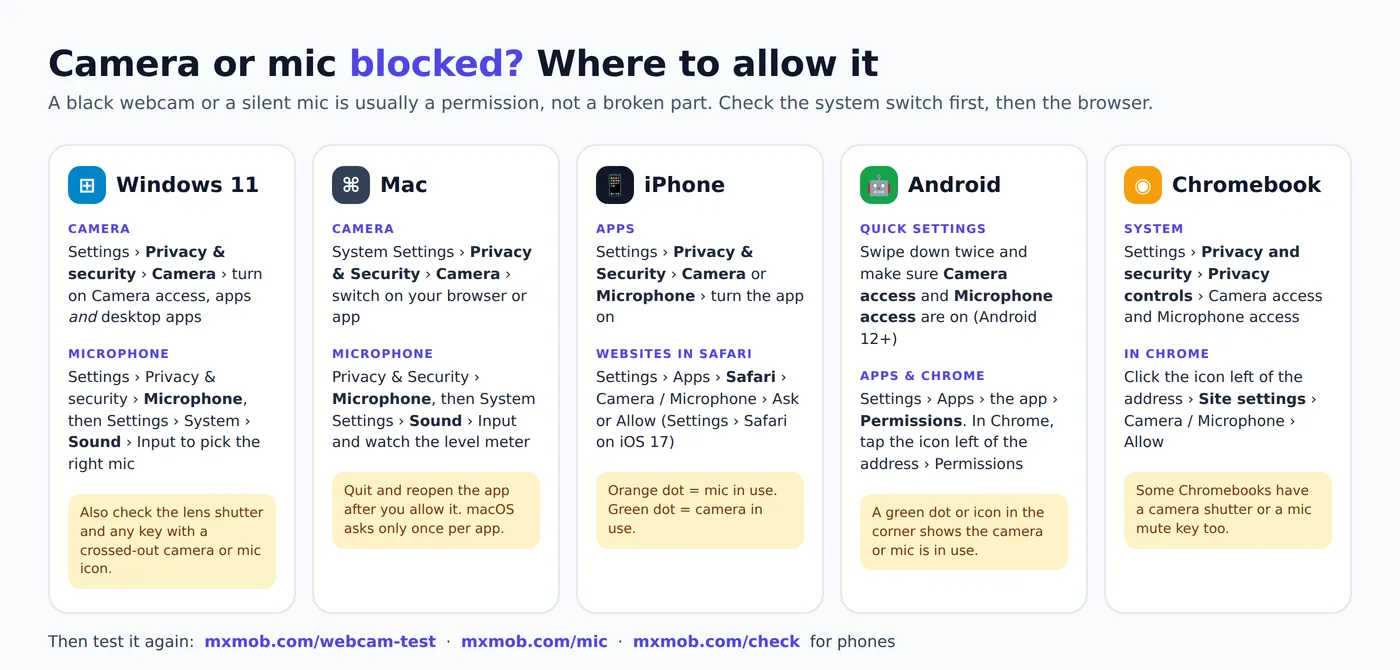
- Chrome and Edge: click the icon to the left of the web address, turn on Camera and Microphone, and reload. All sites:
chrome://settings/content/camera(oredge://settings/content/camera). - Safari on Mac: Safari › Settings › Websites › Camera and Microphone, and set the site to Allow or Ask.
- Firefox: click the camera or mic icon in the address bar to clear a block, or go to Settings › Privacy & Security › Permissions.
- Work or school laptop: your organization may block the camera or mic. If every switch is on and nothing works, ask your IT team.
How to tell if an app or website is using your camera or mic
It’s one of the most searched privacy questions: “can someone see me through my camera?” Every modern system now shows you when the camera or microphone is on:
- iPhone: a green dot at the top of the screen means the camera is on; an orange dot means the microphone is. Open Control Center to see which app used it. Settings › Privacy & Security › App Privacy Report shows each app’s access over the last 7 days.
- Android 12 and later: a green icon in the top corner shows when the camera or mic is in use. Privacy dashboard in Settings lists which apps used them recently, and the Quick Settings tiles turn both off for every app.
- Windows 11: Settings › Privacy & security › Camera (or Microphone) shows recent activity, which apps have used it and when.
- Mac: the green light next to the camera can’t be turned off by software on recent Macs. An orange dot in the menu bar means the mic is in use; Control Center shows which app.
Websites, including MxMob, can use the camera or mic only after you click Allow, and only while the tab is open. You can revoke access at any time from the address bar. Our tests process everything on your device; see the privacy policy and the docs for what is and isn’t stored.
Make your webcam and mic look and sound better on calls
- Light from the front. A window or lamp behind the screen, not behind you, does more for picture quality than a new webcam. Watch the brightness reading in the webcam test rise as you fix it.
- Clean the lens. Laptop webcams pick up fingerprints from closing the lid. A hazy, glowing picture is usually a smudge.
- Raise the camera to eye level. Prop the laptop on a few books.
- Get closer to the mic and away from fans and keyboards. A cheap wired headset usually beats a laptop mic.
- Check your connection. A choppy picture on calls but smooth in the webcam test is a network issue. Run the Wi-Fi speed test; 3 Mbps up and down is enough for HD video calls on most apps.
- Upgrade only if the test proves it: if the webcam is stuck below 720p or under 15 fps in good light, a 1080p USB webcam with a built-in mic is an easy fix.
Buying a used phone or laptop? Test the camera and mic first
Cameras and microphones are some of the most common hidden faults on second-hand devices, because a listing photo can’t show them. A rear camera with dust inside, a front camera that won’t focus or a dead bottom mic is easy to miss in a two-minute meetup. Before you pay:
- In person: run the free phone test or laptop test on the device, record a voice memo and a video with each camera, and play them back. Work through the used phone checklist or used laptop checklist for locks, IMEI and battery.
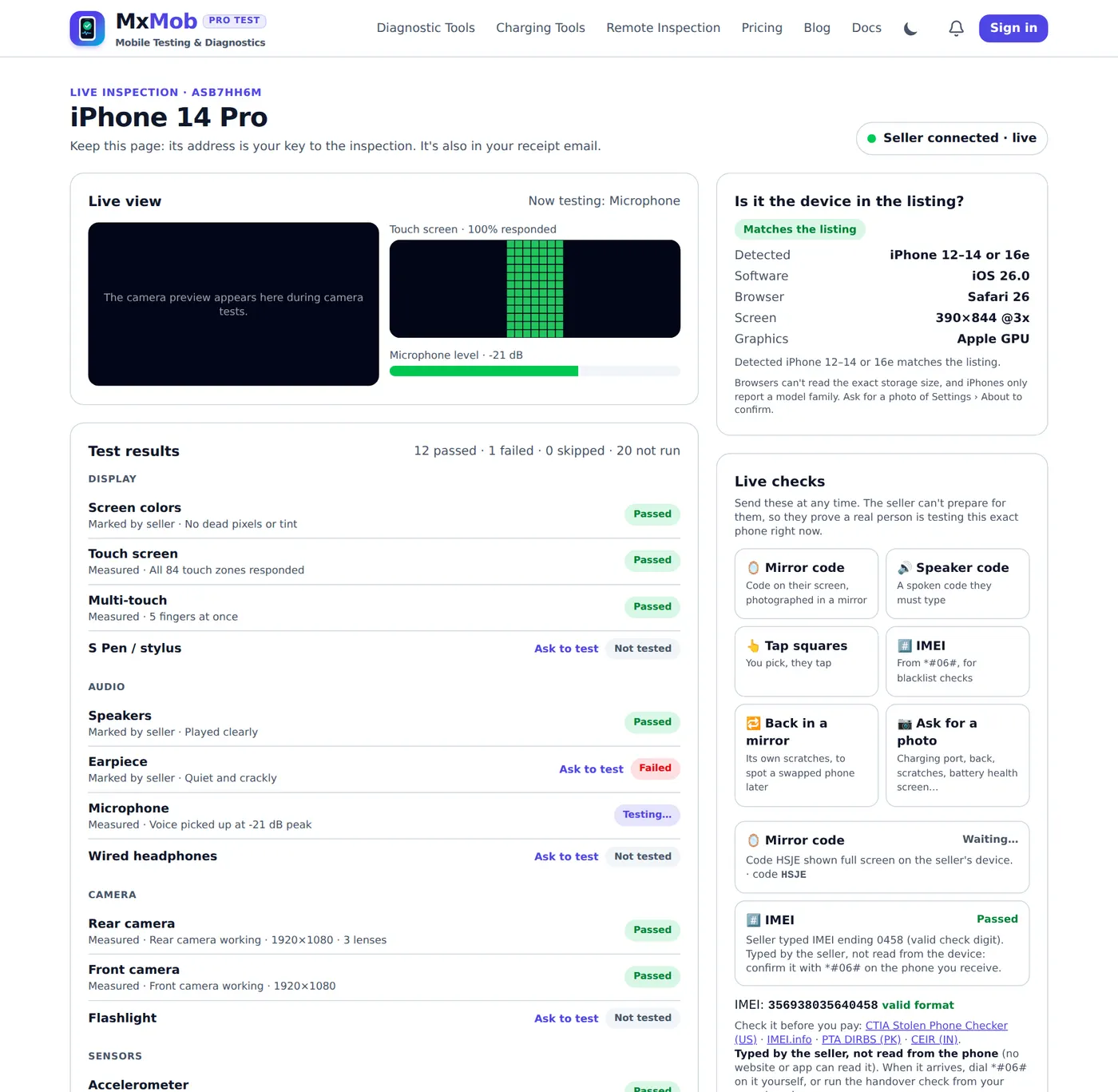
- Buying online or shipped: use Live Remote Inspection. The seller opens your link on the device and you watch the results live, including the microphone level as they speak and a photo from the camera, plus checks a scammer can’t fake, like a code you send that must appear on their screen.
For the full buying process, read how to test a used phone before buying online and what to check on a used iPhone.
Other phone tests people search for
Camera and mic problems often come with other faults, especially after a drop or water damage. These are the most searched phone checks, and all of them are free on MxMob:
| Search | Free test or guide |
|---|---|
| “phone diagnostic test”, “test my phone” | 33-point phone test |
| “dead pixel test”, “screen test” | Screen test · dead vs stuck pixels |
| “touch screen test”, “ghost touch” | Touch test · ghost touch fix |
| “speaker test”, “water eject” | Speaker test and 165 Hz water eject |
| “can’t hear calls unless on speaker” | Earpiece test |
| “screen stays on during calls” | Proximity sensor test |
| “vibration not working” | Vibration test |
| “battery health”, “phone charging slowly” | Battery health guide · slow charging fixes |
| “IMEI check”, “is my phone stolen” | IMEI and stolen phone check |
| “is my phone original or fake” | Original vs fake phone guide |
Every test and checker is listed in the MxMob docs, and common questions are answered in the FAQ.
Frequently asked questions
How do I test my webcam online?
Open the webcam test, click Start webcam test and allow camera access. A live picture means the webcam works. The test also shows the real resolution, frame rate and brightness, and lets you switch between cameras. Nothing is recorded or uploaded.
How do I test my microphone online?
Open the mic test, click Start Mic Test, allow the microphone and speak. If the bars move, the mic works. Click Record 3s Audio and play it back to hear whether you sound clear or muffled.
Why is my webcam showing a black screen?
Usually the lens is covered by a privacy shutter, the camera is turned off with a function key, another app such as Zoom or Teams is using it, or camera access is blocked in Windows or macOS privacy settings. Work through the webcam fixes in order, then run the webcam test again.
Why is my mic not working on Windows 11?
Check that the right mic is selected in Settings › System › Sound › Input, that microphone access is on in Settings › Privacy & security › Microphone, and that no mute key or headset switch is on. Then confirm with the mic test. The full fix list covers Bluetooth and 3.5 mm headsets.
How do I test my camera and mic before a Zoom or Teams call?
Run the webcam test and mic test to confirm the hardware works, then use the app’s own check: the Zoom test meeting at zoom.us/test, or Make a test call in Teams settings. If the browser test works but the app doesn’t, the app is using the wrong device. See the app-by-app table.
How do I test my iPhone microphone?
Open mxmob.com/check in Safari and run the Microphone test. To check all three mics, record in Voice Memos (bottom mic), then record a video with the front camera and one with the rear camera, and play each back. The iPhone mic diagram shows where they are.
How do I test my Android phone’s camera and microphone?
Open the phone test in Chrome or Samsung Internet and run the Microphone, Front camera and Rear camera tests. On Android 12 and later, also make sure the Camera access and Microphone access tiles in Quick Settings are on. Samsung owners can use Samsung Members diagnostics too; see the Samsung guide.
Is it safe to test my webcam and mic on a website?
On MxMob, yes. The picture and sound are processed in your browser and never recorded or uploaded, and access stops when you close the tab. A website can only use your camera or mic after you click Allow, and you can revoke it from the address bar at any time. Read the privacy policy.
Why does my mic sound muffled?
On a phone, a case, screen protector or lint in the mic hole is the usual cause. Clean it gently with a soft brush and test each mic. On a laptop, a Bluetooth headset in hands-free mode sounds muffled by design. Record with the mic test to compare, and check the speaker test if the phone has been wet.
How can I tell if someone is watching through my camera?
Look for the indicator: a green dot on iPhone or Android, or the green light next to a laptop webcam. iPhone’s App Privacy Report, Android’s Privacy dashboard and Windows 11’s camera privacy page show which apps used the camera recently. More in our camera privacy section.
What resolution should my webcam be?
Most laptop webcams are 720p (1280 × 720) and newer ones are 1080p. The webcam test shows the real resolution and frame rate your browser receives. Aim for 30 fps; under 15 fps in good light points to a USB, driver or camera problem.
Can I check the camera and mic on a used phone before buying it online?
Yes. With Live Remote Inspection the seller opens your link on the phone and you watch the microphone level, camera photo and other tests live, with checks they can’t fake. In person, run the free phone test and follow the used phone checklist.